Opening a Bitget account takes about ten minutes end to end: fill in the sign-up form, confirm your email, set a password, and verify your identity. This guide walks through every screen in order using real screenshots, so you know exactly what to expect before you start.
One thing matters more than everything else: the Bitget referral code has to be entered when the account is created. The Bitget referral code for 2026 is CRYTPERKS (pre-filled automatically if you use the button below) — it unlocks a welcome package worth up to $6,200 plus a 20% discount on trading fees, and it cannot be attached afterward.

Step 1: Open the Bitget sign-up page
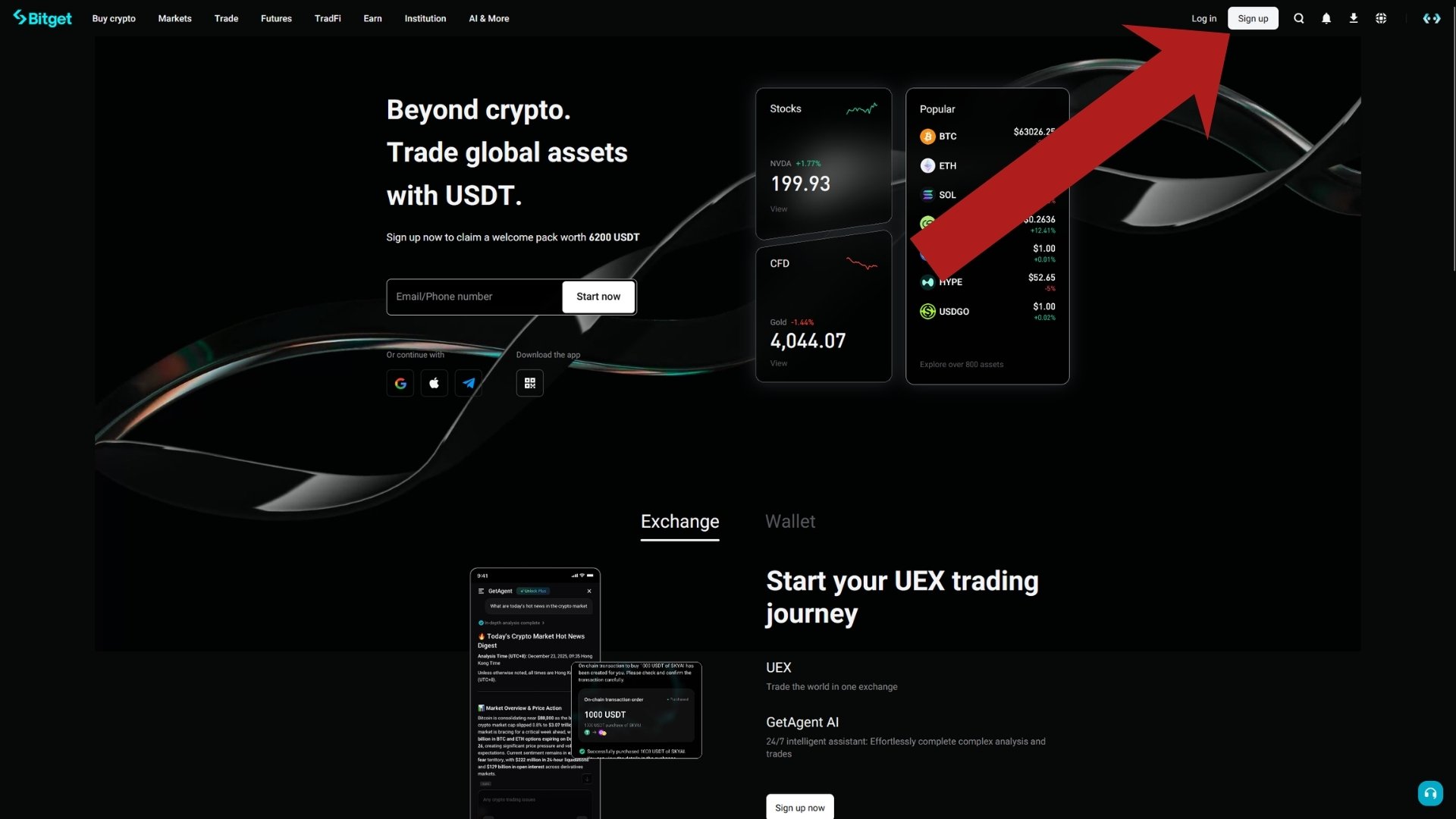
The fastest route is our referral link — it opens the registration form with the code already filled in. You can also reach Bitget through a normal browser search or the mobile app; the flow is identical, you will just type the referral code yourself in Step 3.
On the homepage, click the white Sign up button in the top-right corner. You can also start directly from the email field in the middle of the page — both lead to the same form.
Step 2: Find the referral code field on the sign-up form
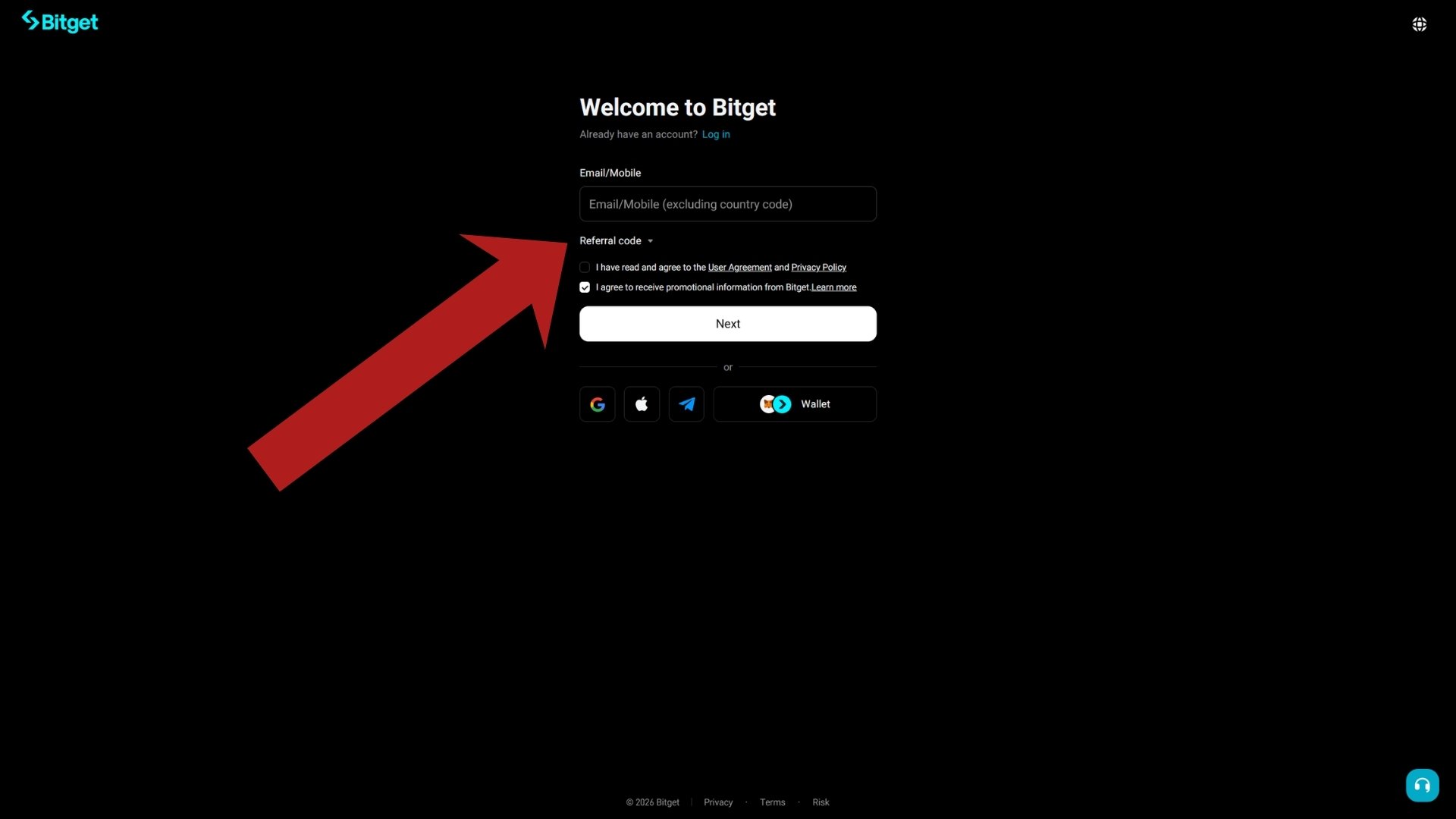
The "Welcome to Bitget" form asks for an email address or phone number. Right below it sits a collapsed line that says "Referral code" with a small arrow — this is where the Bitget referral code goes, and it is the field that matters most. Click it to expand the input.
If you arrived through our link, the code is already filled in and you can skip to Step 4.
Step 3: Enter your email and the referral code CRYTPERKS
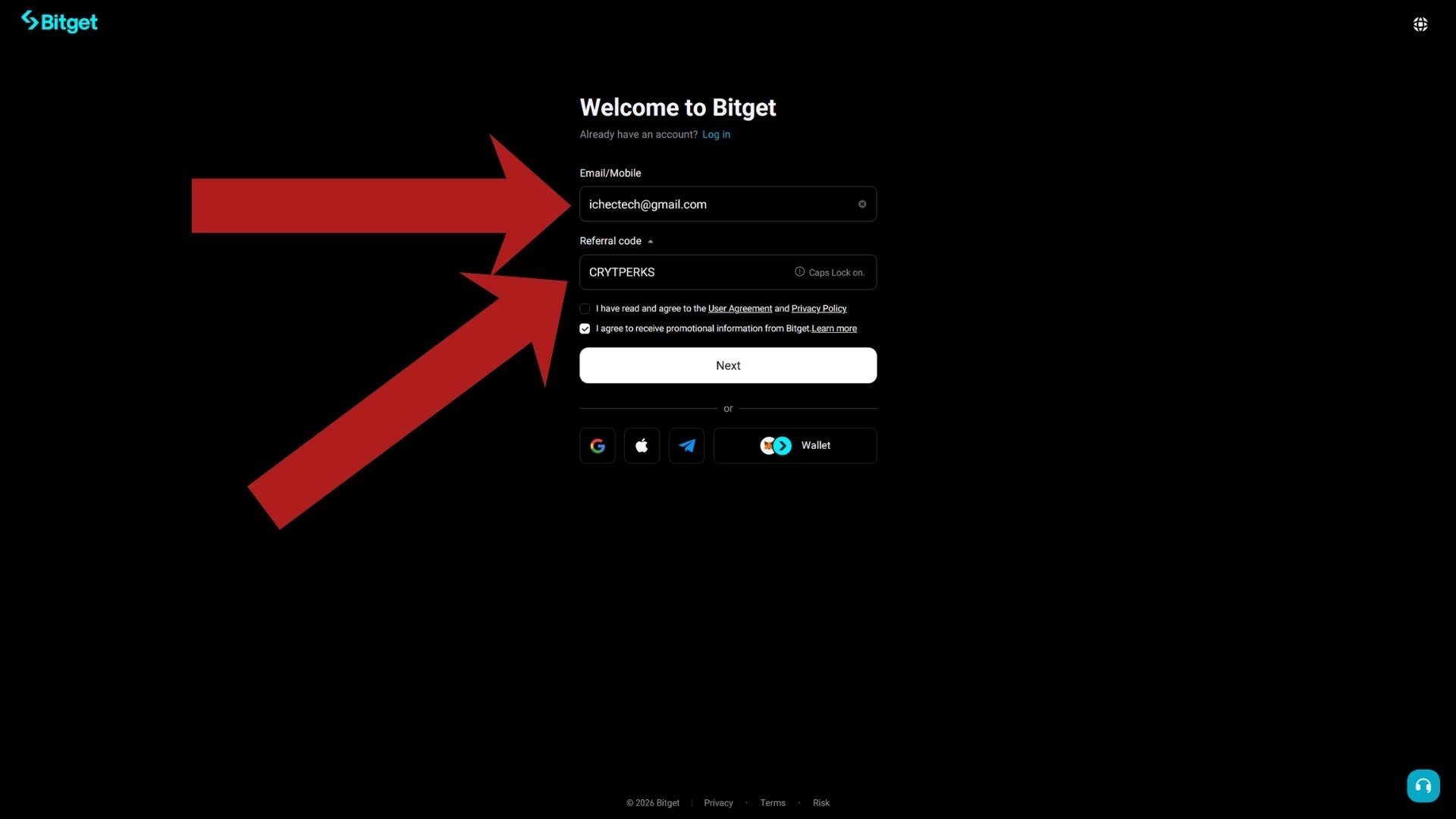
Type your email address into the top field and double-check it — this is where your verification code arrives in a moment. Then enter the Bitget referral code CRYTPERKS in the referral code field, exactly as written.
This single step is what links your account to the welcome package worth up to $6,200 and the permanent 20% fee discount. Bitget funds the bonus entirely — the code costs you nothing.
Step 4: Accept the User Agreement
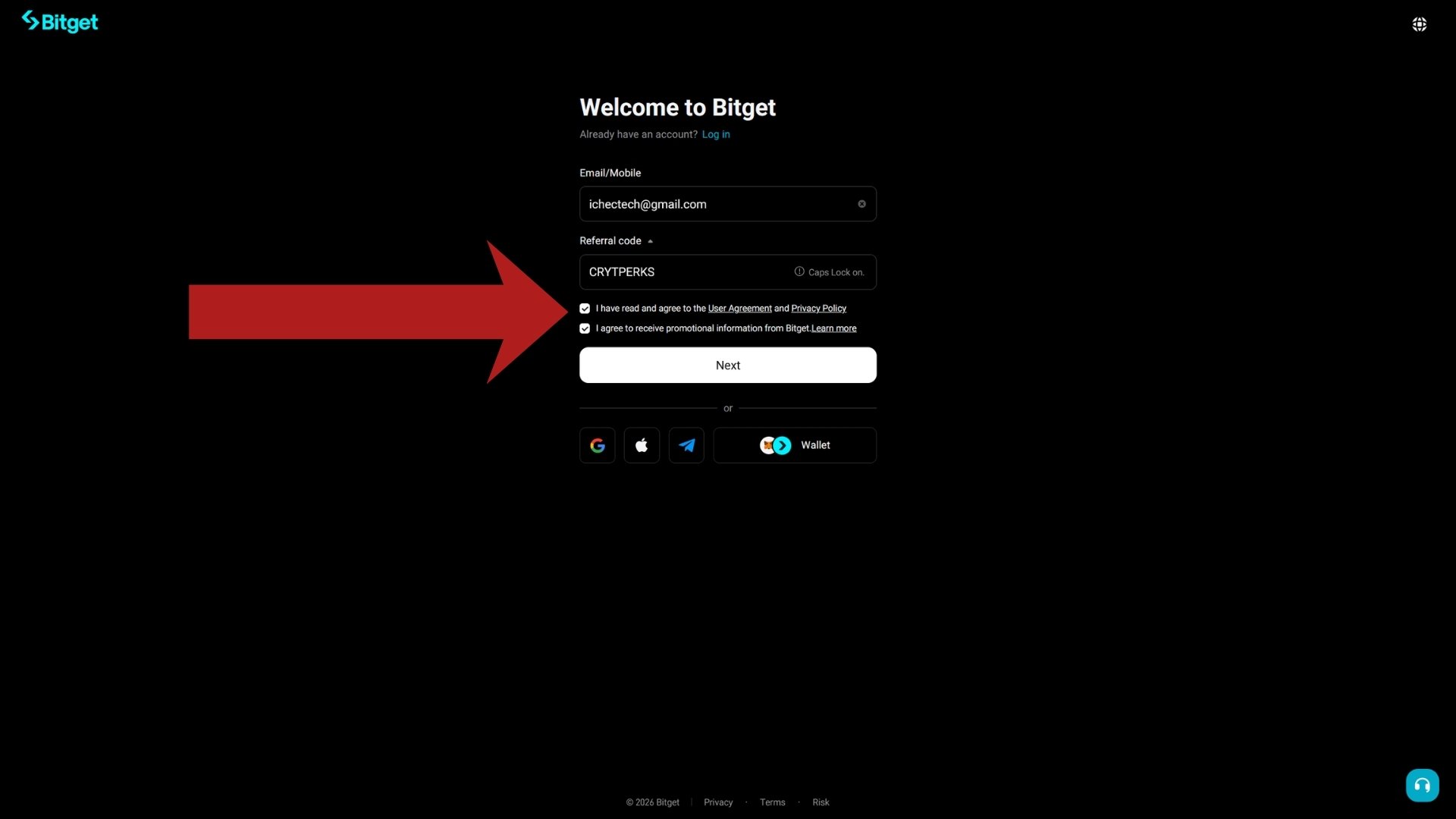
Tick the first checkbox to confirm you have read the User Agreement and Privacy Policy — registration will not continue without it. The second checkbox (promotional emails) is optional; leave it on if you want to hear about trading campaigns and bonus events.
Step 5: Press Next to submit the form
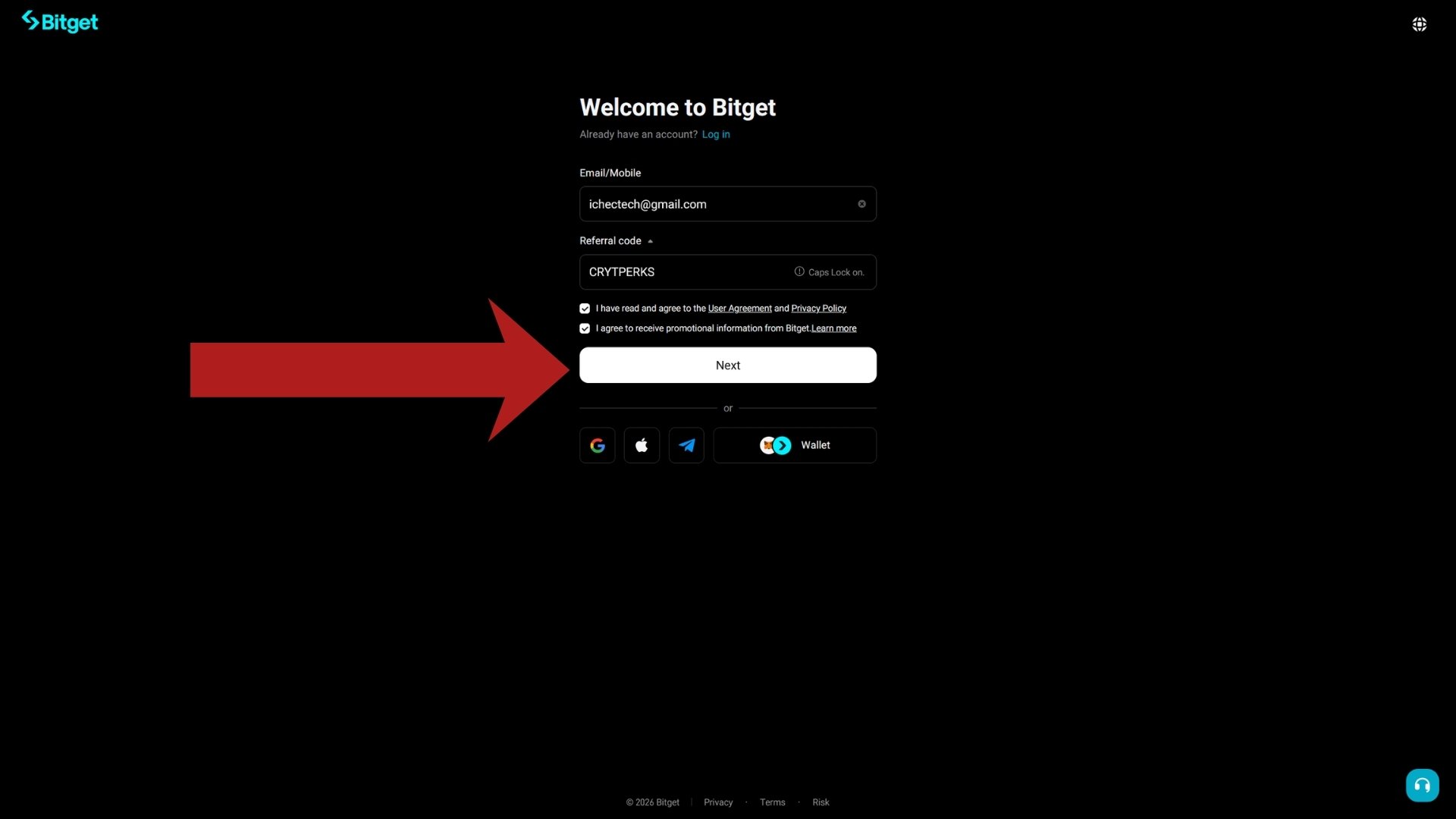
Take one second to confirm the referral field still shows CRYTPERKS, then press the white Next button. Bitget now moves you to password creation.
Step 6: Set a strong password
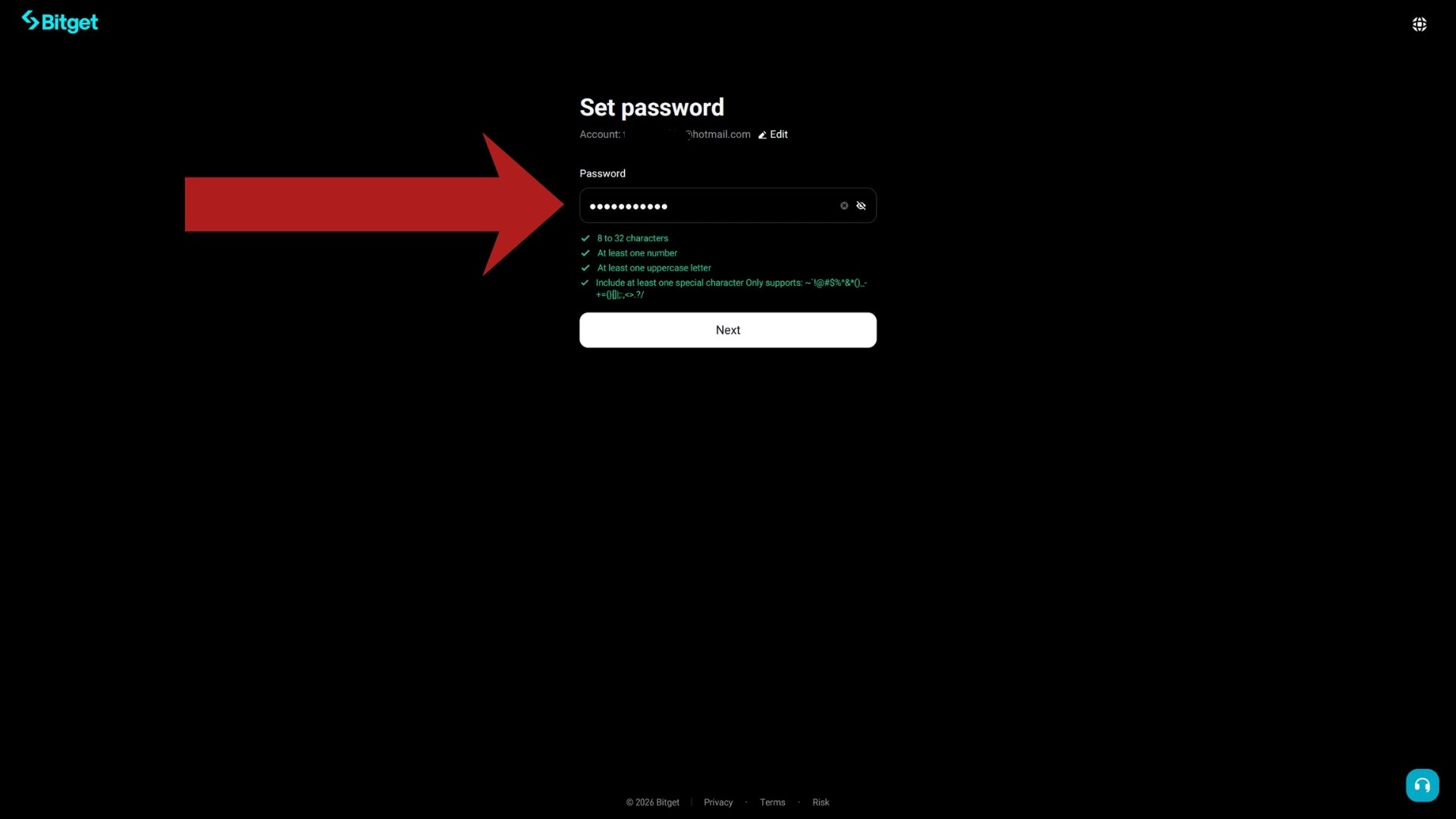
Bitget requires 8 to 32 characters including at least one number, one uppercase letter, and one special character. As you type, each requirement turns green when satisfied.
Use a password you use nowhere else — this account will eventually hold funds. A password manager is the easiest way to generate and store one.
Step 7: Continue to email verification
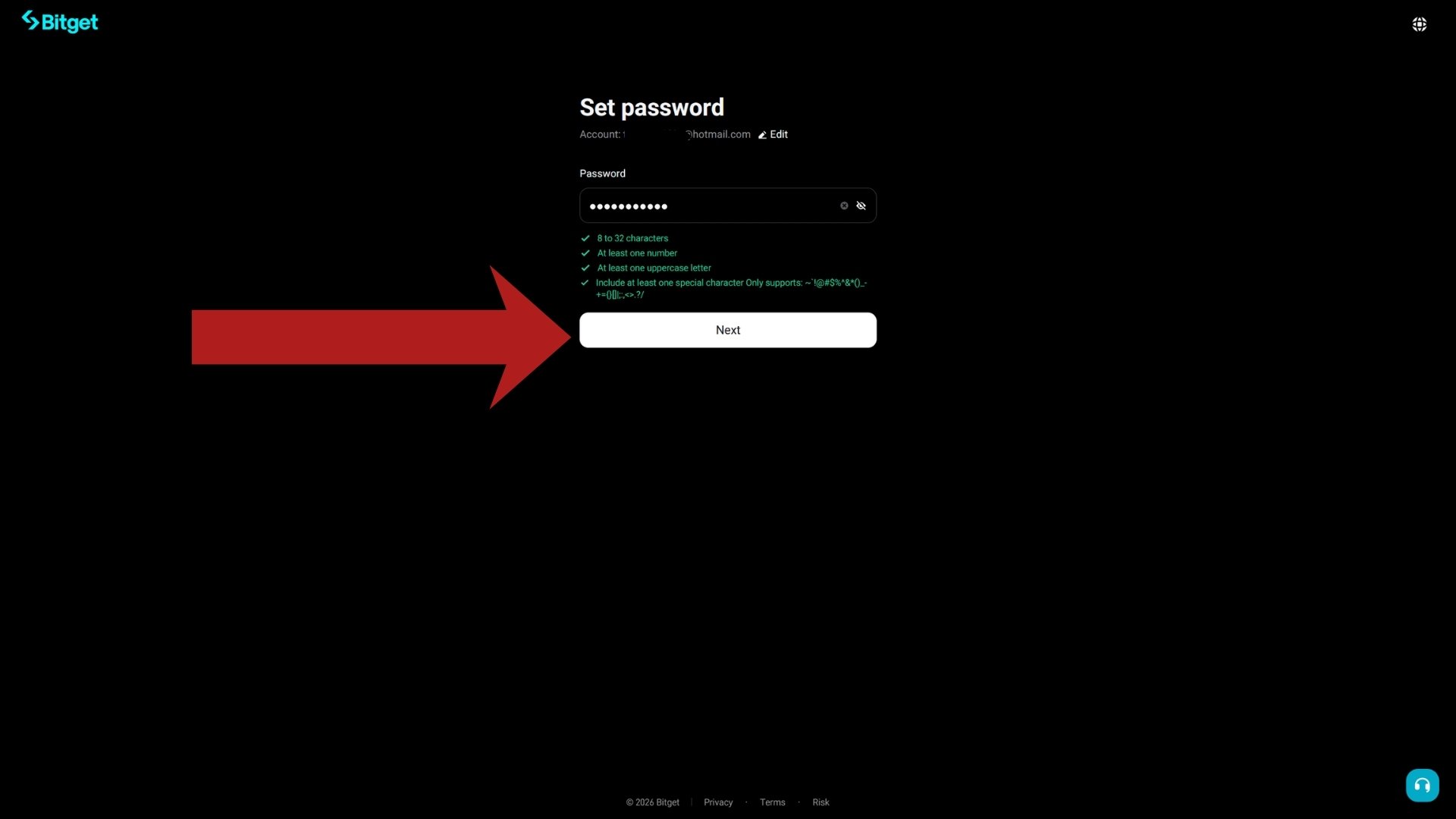
When all four checks are green, press Next. Bitget immediately sends a 6-digit verification code to the email address you entered in Step 3.
Step 8: The verification code screen
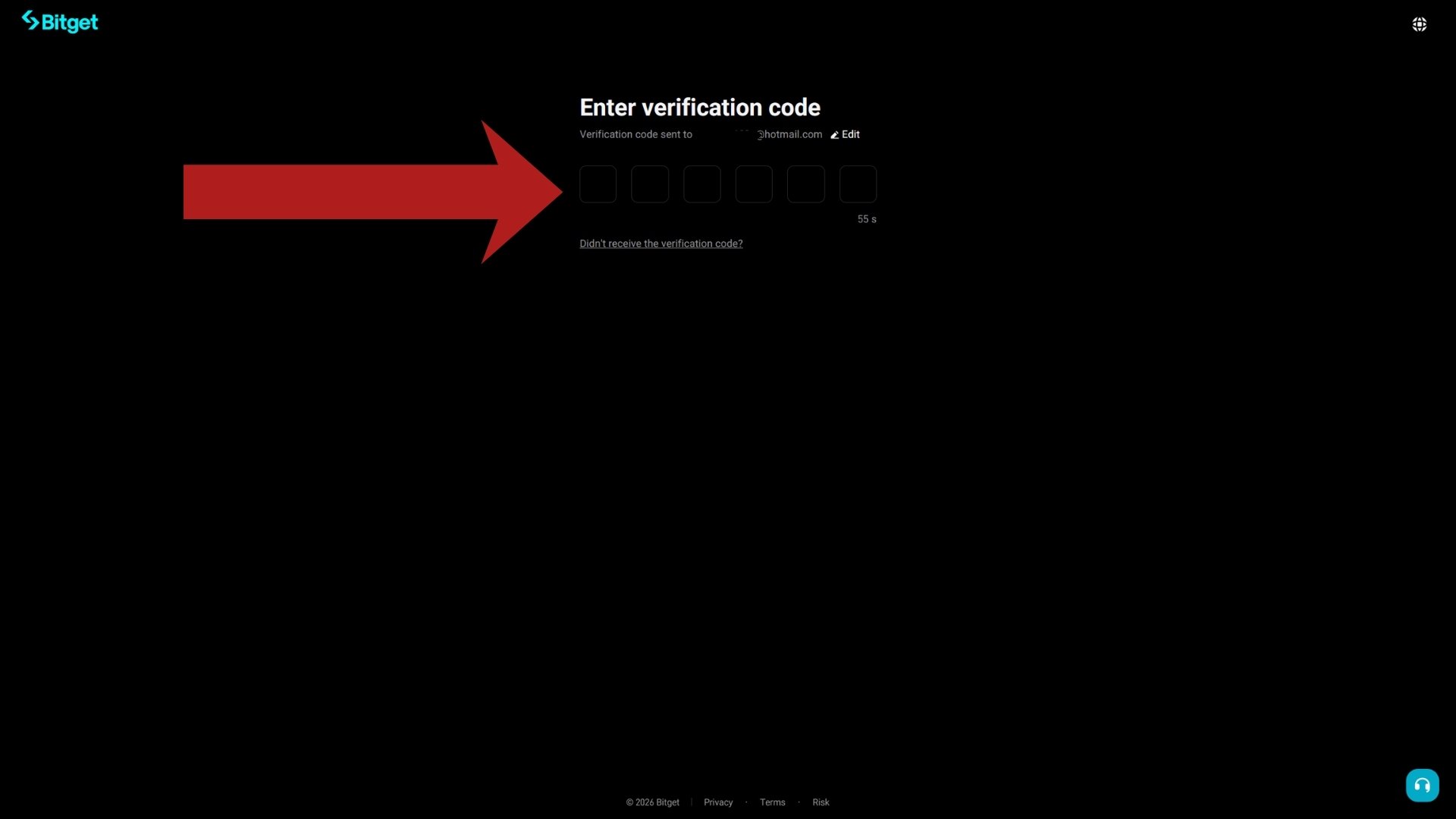
This screen waits for the 6-digit code. Keep it open and switch to your email inbox in another tab. If nothing arrives within a minute, check the spam folder, then use "Didn't receive the verification code?" once the countdown allows it.
Step 9: Find the Bitget email in your inbox
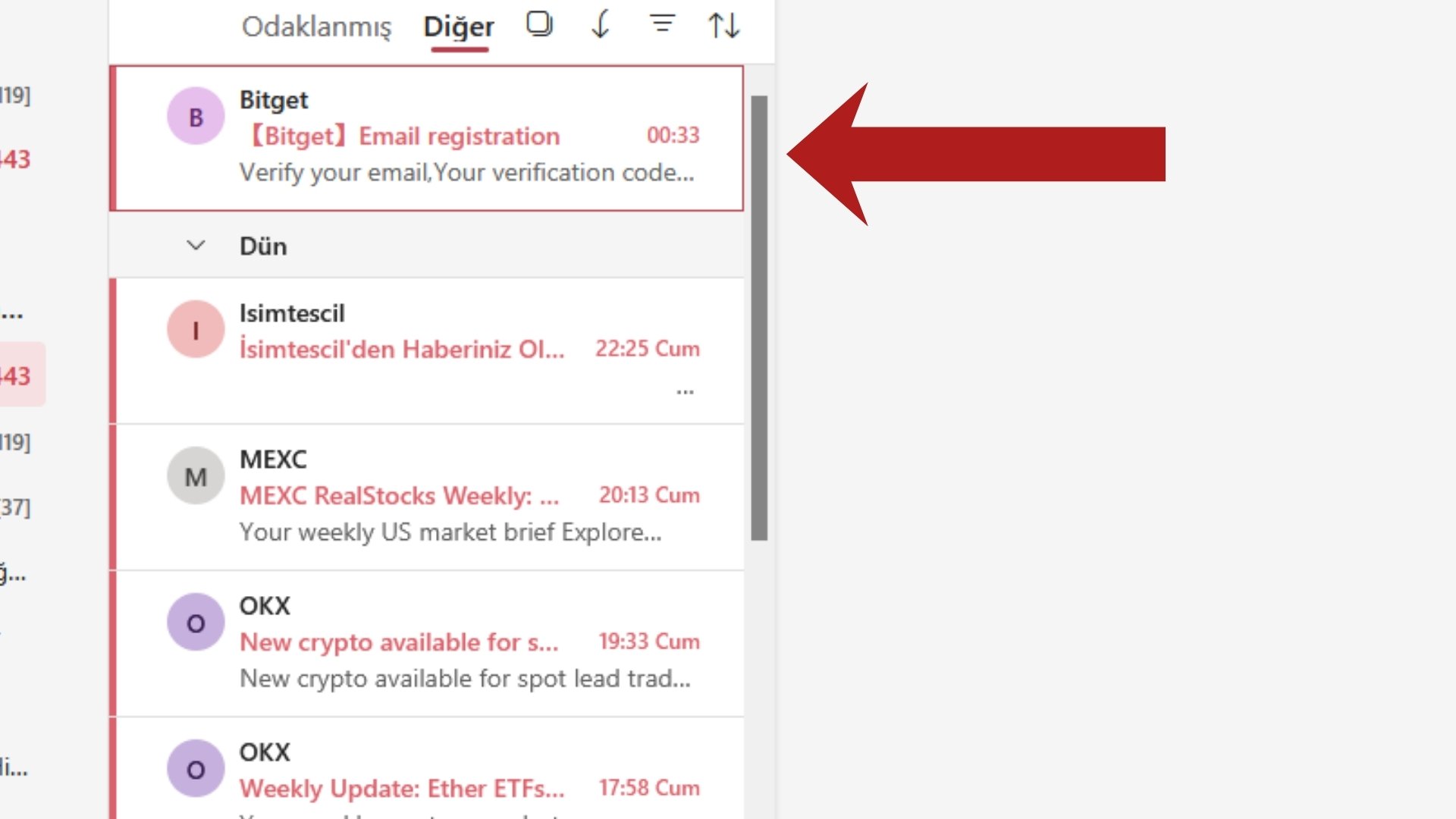
The email arrives from an official bitget.com address with the subject "【Bitget】Email registration". It usually lands within seconds. If it is not in the main inbox, look under Spam or the "Other" tab.
Step 10: Copy the 6-digit code
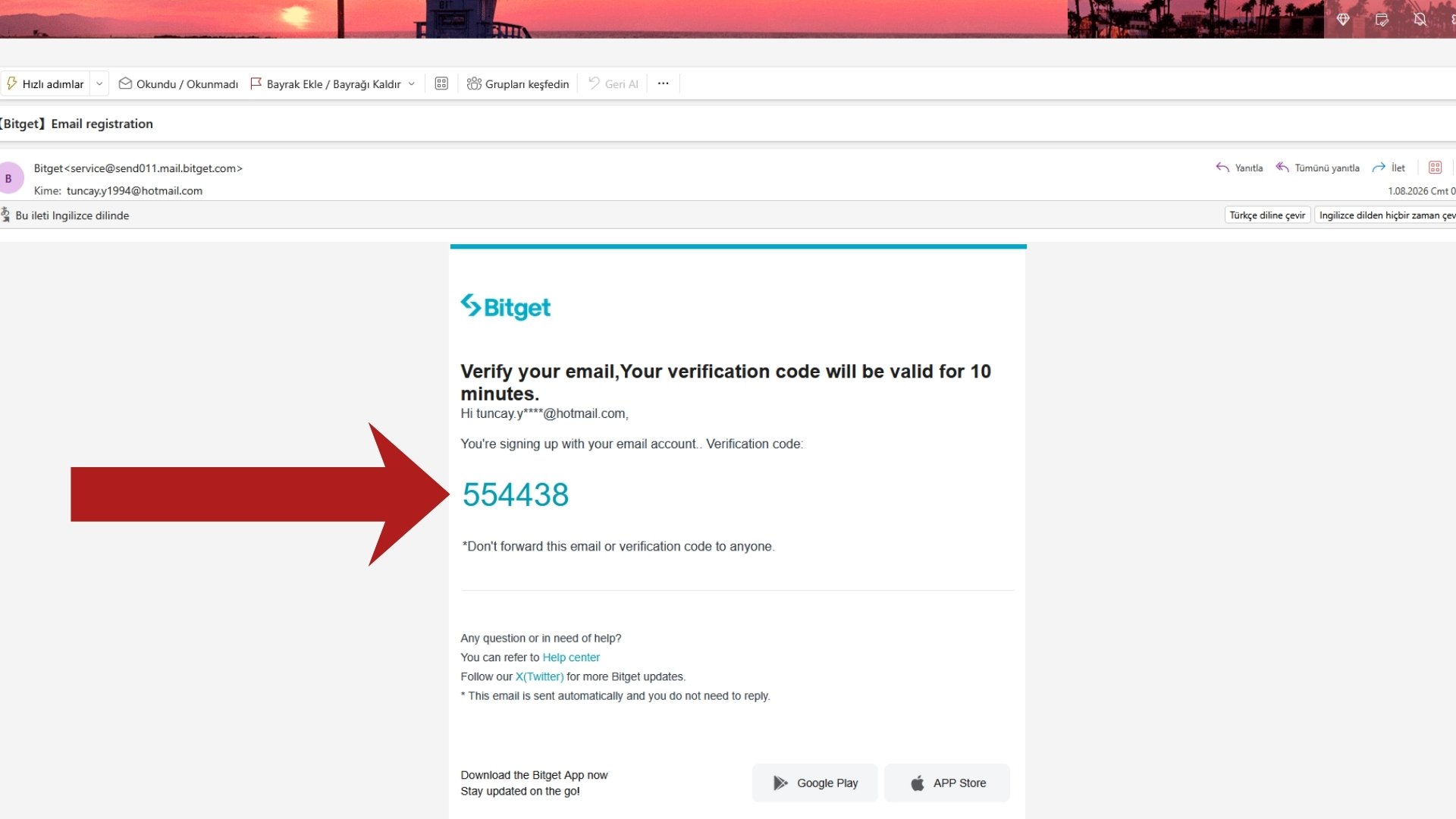
Open the email and copy the 6-digit code — it stays valid for 10 minutes. Type it into the six boxes on the Bitget tab and the account is created instantly.
Security note: Bitget will never ask you to send this code to anyone. If someone requests it by message or phone, it is a scam.
Step 11: Your account is live — now unlock full access
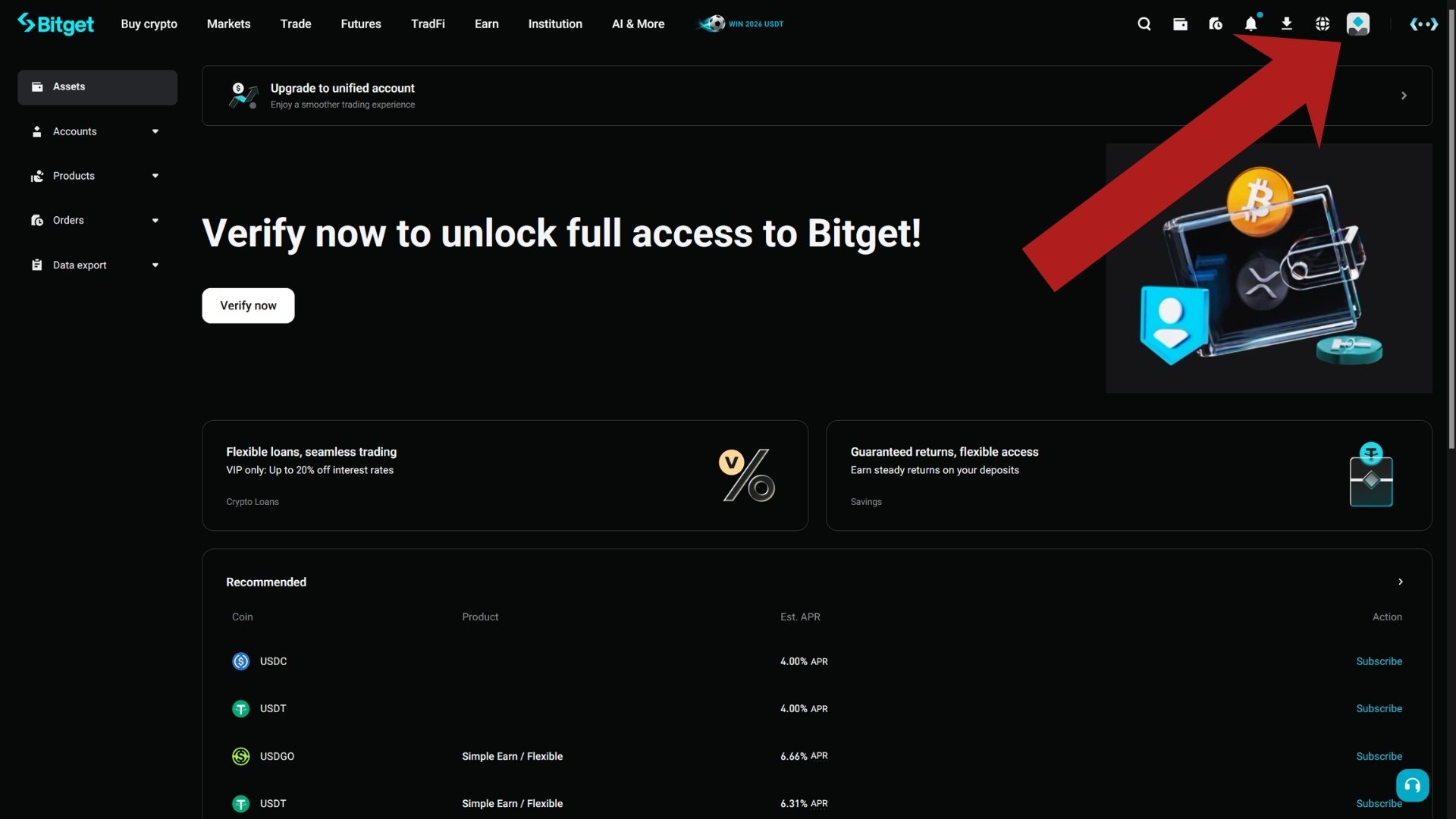
You now land on the Bitget dashboard. The account exists, but deposits, withdrawals, and most features stay locked until identity verification (KYC) is complete — the banner across the top says exactly that.
Click the Verify now button, or open the profile icon in the top-right corner for the account menu.
Step 12: Open Identity verification from the profile menu
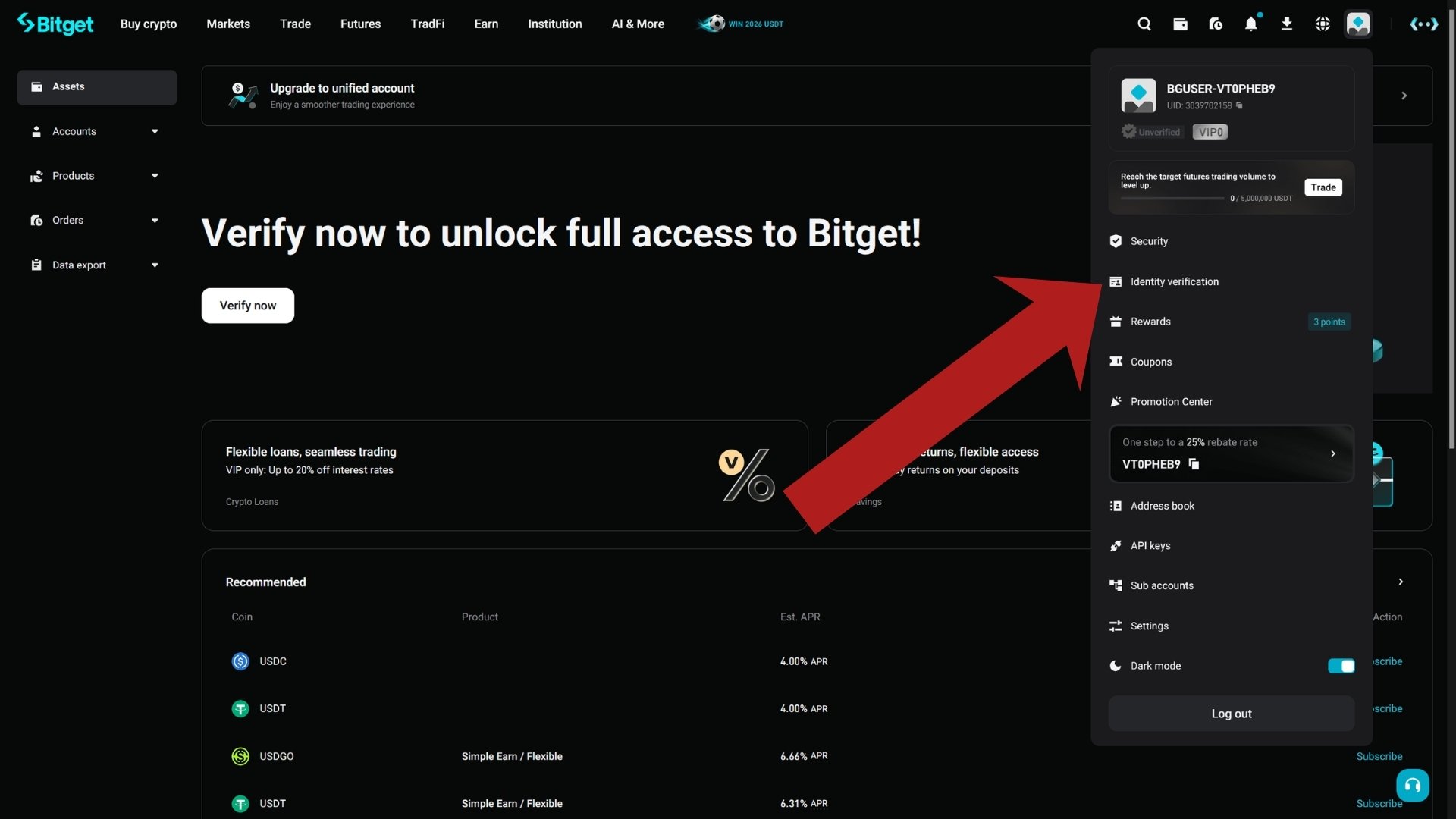
In the profile dropdown you can see your UID, VIP level, and the menu entries. Click Identity verification to open the KYC page. Notice the menu also confirms your referral is active — the rebate banner near the bottom shows the code attached to your account.
Step 13: Start basic identity verification
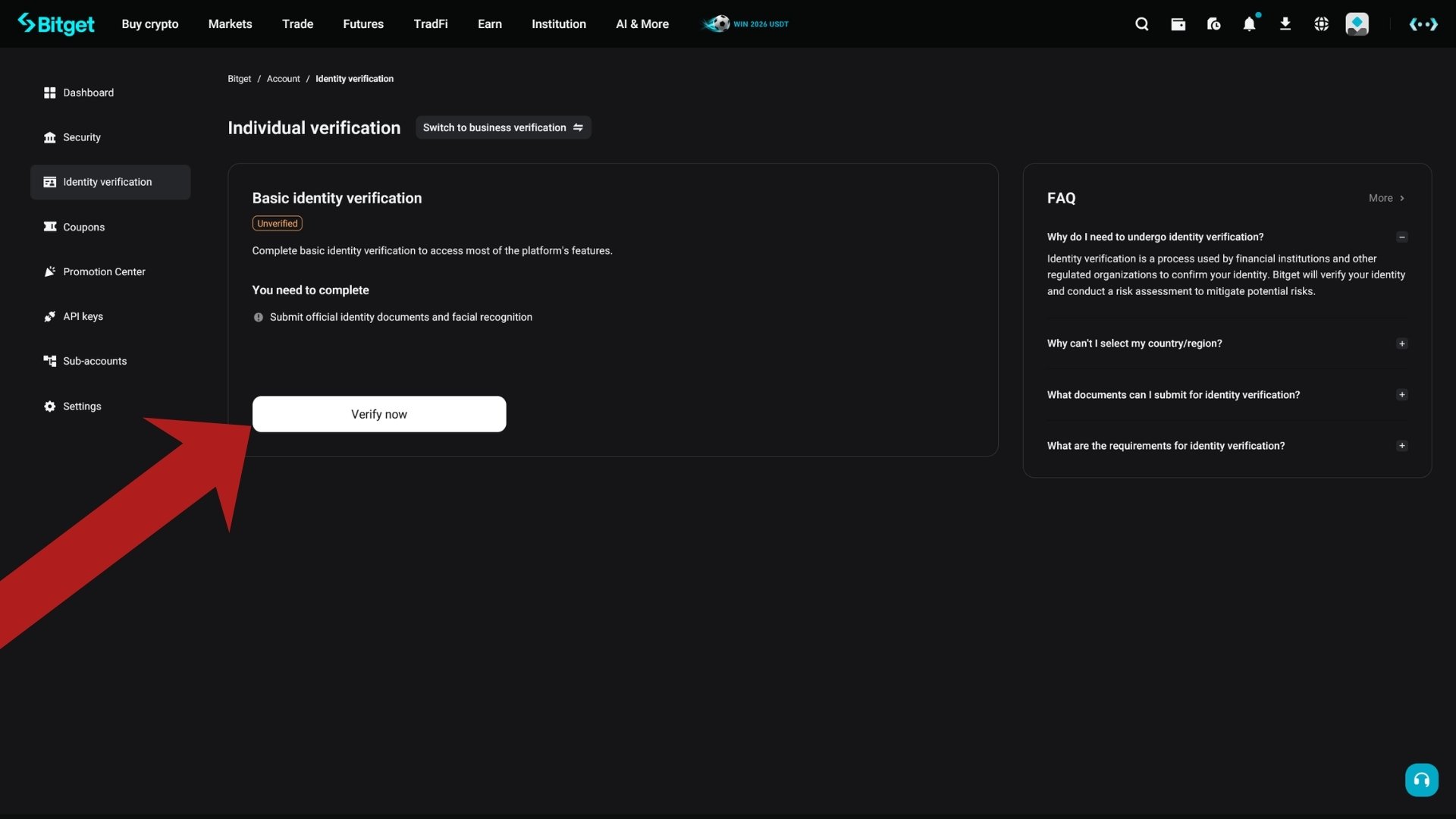
The Individual verification page lists what you will complete: submitting an official identity document and a quick facial recognition check. Press Verify now to begin.
Verification is standard for all regulated exchanges — it protects your account and unlocks deposits, withdrawals, and the welcome bonus tasks.
Step 14: Select your country and document type
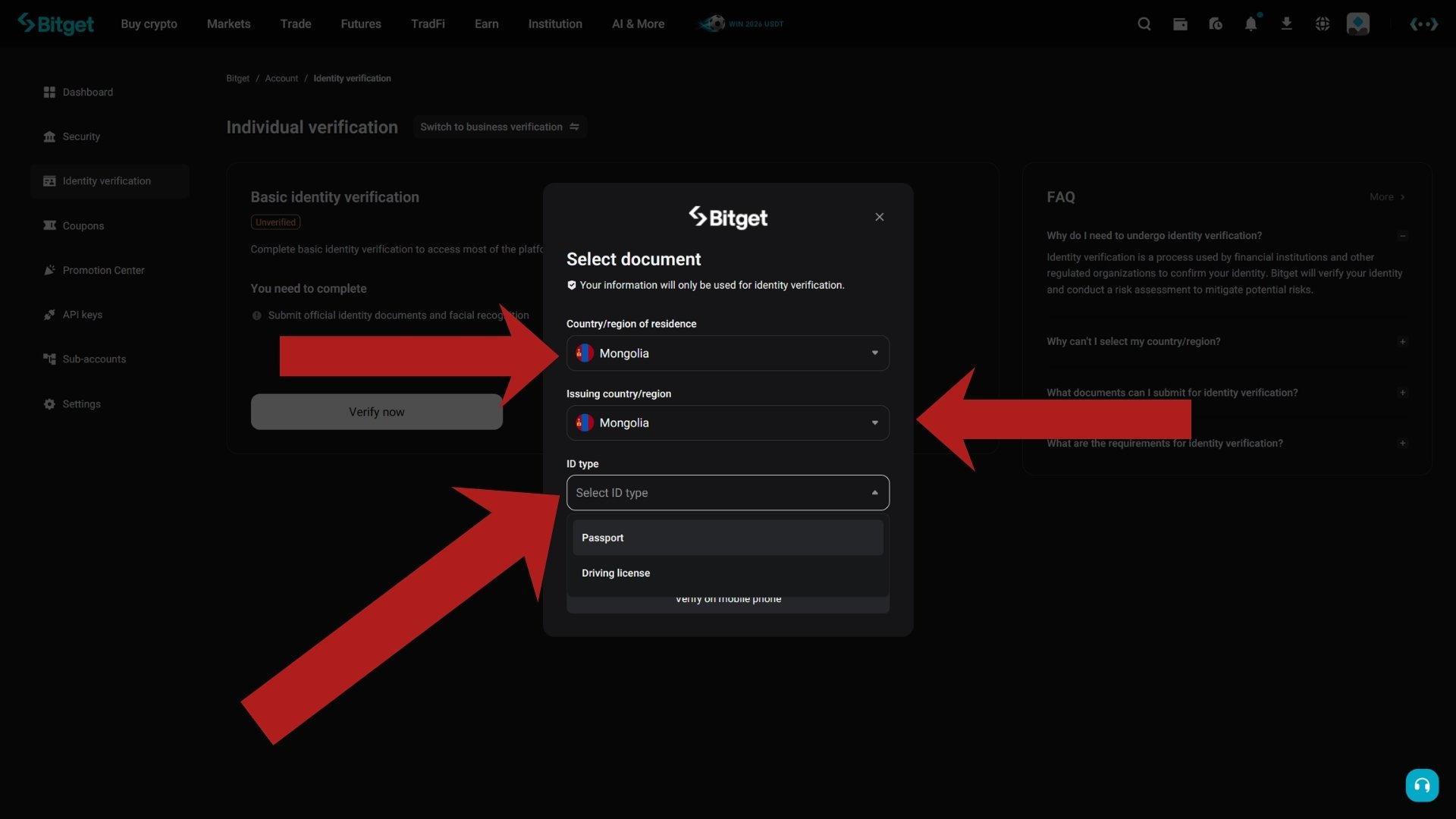
Choose your country/region of residence, the country that issued your document, and the ID type — passport or driving licence, with a national ID card available in many regions. Your information is used only for identity verification.
Use a document that is valid (not expired) and matches your legal name exactly.
Final step: facial recognition — Bitget guides you through it
After the document upload, Bitget switches to a short camera session: a live facial recognition check that matches your face to the document. The on-screen prompts walk you through it — good lighting, no glasses or hat, face centred in the frame. It takes under a minute.
Approval is typically quick, often within minutes. Once the status shows Verified, deposits and withdrawals are unlocked and the welcome bonus tasks in the Rewards Hub become available. That is the whole journey — account, Bitget referral code CRYTPERKS, verification, done.